
UniFi Endpoint
Ubiquiti Inc.Business
4.6208.00 Reviews
- Version
- 4.0.3
- Installs
- 100.00K
- Age Rating
- Everyone
Screenshots
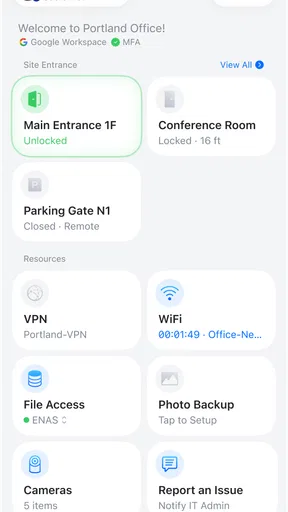
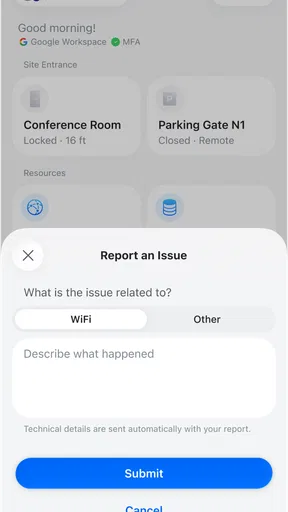
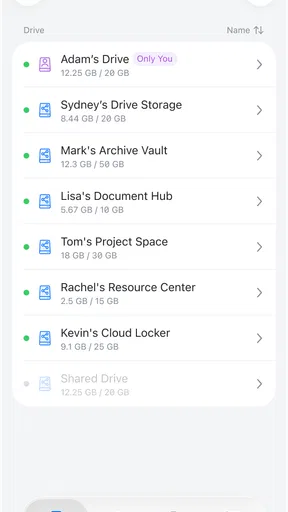
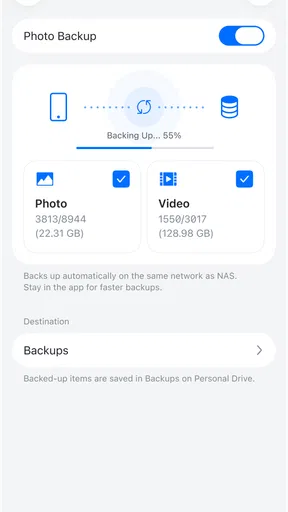
Our Review of UniFi Endpoint
 Analysis by Appyee
UniFi Endpoint is a business app from Ubiquiti Inc. built around a simple promise: getting an endpoint connected without turning the process into a long networking task. I approached it as the sort of tool a small office manager, field technician, or employee might keep on a phone for quick access rather than as a full replacement for a desktop administration console. That distinction matters, because the app feels most useful when a connection needs to happen promptly and the person handling it does not want to work through a larger interface.
In my experience, the appeal is less about having a huge collection of options and more about reducing the number of steps between opening the app and reaching the required endpoint. The store summary calls this “One-Click Connection,” while the short description identifies it as “UniFi Endpoint.” Those phrases point to the app’s central role: it is a focused business utility for connecting to a UniFi environment, not a general-purpose productivity suite.
It is free, carries an Everyone age rating, and has attracted a 4.6 average from around 5.7 thousand ratings, with more than 100 thousand installs. Those figures suggest that it has found a practical audience among people already working with Ubiquiti equipment or services. I would still judge it by fit rather than popularity, because a focused endpoint tool can be excellent for one workflow and unnecessary for another.
Where the quick connection approach helps
The first thing I noticed is how naturally the app fits a “connect first, investigate second” routine. If I am away from a desk and need to reach a managed endpoint, a compact mobile workflow is more convenient than opening a browser, finding the right administrative page, and navigating through several layers before getting to the relevant destination. The value is especially clear when the task is occasional but urgent.
A realistic example would be a small office where the person responsible for technology is not always on site. An employee reports that a workstation or network-connected device needs attention. Instead of asking that employee to understand the network setup, the responsible person can use the phone as the starting point for the connection. UniFi Endpoint is not magic—it still depends on the surrounding UniFi setup and the user’s access—but it can make the first response less dependent on a laptop.
That convenience also changes how I think about speed. I would not describe the app as a performance benchmark tool, and I would not expect it to make a slow network fast. Its perceived speed comes from shortening the interaction path. When the environment is already prepared, the app’s focused purpose should make the process feel quicker than a broad management interface, because there are fewer unrelated controls competing for attention.
This is an important trade-off. A narrow app can feel immediate when I already know what I want to connect to, but less helpful when I am still diagnosing the problem. If I need detailed configuration, historical investigation, or a broad view of an entire deployment, I would rather use the appropriate UniFi management interface on a larger screen. The mobile app makes more sense as a direct doorway than as the whole building.
What the app is like during busy moments
The most demanding situations are not necessarily moments when the app itself is doing complex work. They are moments when I am moving between locations, dealing with an impatient colleague, or trying to recover access while several variables are changing at once. In those situations, a single-purpose connection tool has a practical advantage: it reduces the amount of mental sorting required before I begin.
I found that the best workflow is to prepare before the emergency. I would make sure the phone is signed in appropriately, the relevant endpoint is recognizable, and the network path is available while everything is calm. That preparation is more valuable than expecting the app to solve an unfamiliar setup under pressure. A quick connection flow only stays quick when the surrounding account and network conditions are already in order.
Another useful habit is to separate connection trouble from endpoint trouble. If the app cannot establish the expected session, I would first check whether the phone has a working connection and whether the target environment is reachable. If those basics are fine, then I would look at the endpoint or account. This sounds obvious, but a streamlined interface can make users assume that every failure belongs to the app. In practice, the app is one part of a wider UniFi workflow.
During heavier use, I also prefer using the phone for short interventions rather than leaving it as my main administration screen for an extended session. A mobile display is convenient for a quick handoff or remote check, but it is not as comfortable for comparing many settings, reading dense information, or documenting a complicated incident. The app’s focused design helps it stay approachable, yet that same focus limits how much I want to do inside it at once.
Stability and recovery when a connection goes wrong
For a business connection tool, reliability is about more than whether the app opens. I want a clear path from launch to endpoint, predictable behavior when the network changes, and a sensible way to try again after an interruption. UniFi Endpoint benefits from having a straightforward purpose, because there are fewer unrelated activities that can distract from the connection task.
Still, no mobile connection workflow should be treated as independent from the network. Moving from office Wi-Fi to cellular service, entering a location with weak coverage, or waking the phone after a long idle period can all change the result. My advice is to retry deliberately rather than repeatedly tapping the connection control. Confirm the phone’s current network, give the process a moment, and then try again. This avoids turning a temporary network delay into a confusing series of duplicate attempts.
Recovery is also easier when I keep an alternative route available. If the task is business-critical, I would not rely on a phone alone. A desktop browser or another authorized administrator may be the better fallback for detailed recovery. That is not a criticism unique to this app; it is a sensible operational boundary for any mobile endpoint tool. The app is valuable because it adds a convenient route, not because it removes the need for basic contingency planning.
The release currently identified as version 4.0.3 is a useful reminder to keep the installed app current through the normal platform update process. I would also avoid testing a new workflow for the first time during an outage. A few minutes spent confirming that the account, endpoint, and phone work together can prevent unnecessary uncertainty later.
Phone and operating-system considerations
The minimum operating-system requirement is Android 7.0, which gives the app a broad compatibility range for Android users. That does not mean every older phone will provide the same experience. Device age, available memory, battery condition, screen size, and the quality of the network connection can all affect how comfortable a business app feels in daily use.
On a newer phone, I would expect the main advantage to be responsiveness between screens and less friction when switching back to another business tool. On an older device, the app may still be usable, but the overall experience can be shaped by the phone itself rather than by the app’s purpose. If the handset is already slow when opening other applications, UniFi Endpoint is unlikely to transform it into a reliable emergency console.
Resource demands are best judged in context. This is not the kind of app I would install for entertainment and leave active all day without a reason. I would open it when a connection is needed, complete the task, and return to other work. That usage pattern should naturally limit its impact compared with an app designed for continuous media playback or constant background activity. I would nevertheless watch battery behavior on an older phone, especially if the device is also handling calls, authentication, and remote support tools.
Screen size is another practical constraint. A phone is excellent for a direct action, but less suitable for examining a complicated environment. If I expect to compare multiple endpoints or make careful changes, a tablet or desktop interface is more comfortable. UniFi Endpoint is therefore strongest when the endpoint is known and the next action is clear. It is less compelling for users who want a complete control center on a small screen.
Who should use it, and who should choose something else
I would recommend this app to people who already work within a UniFi-based setup and need a mobile way to reach an endpoint without carrying a laptop everywhere. It is particularly suitable for small businesses, on-call staff, installers, and managers who occasionally need to initiate or support a connection while away from a desk. The free price also makes it easy to try without adding a purchase decision to the setup process.
I would be more cautious if you are not using a UniFi environment. The app’s value depends on that ecosystem, so installing it simply because you want a generic remote-access tool would probably lead to disappointment. A general remote desktop application, a browser-based administration service, or the management option supplied by another networking platform may be a better match when your equipment is not part of Ubiquiti’s system.
I would also choose a broader UniFi management option when the job involves extensive configuration, reporting, or troubleshooting across many parts of a network. UniFi Endpoint is not the app I would want as my only tool during a complex infrastructure review. Its strength is the focused connection path, while a larger interface is better for understanding the whole deployment.
There is a subtle difference between “easy to start” and “easy to administer.” The former is where this app makes the strongest impression. It can help a non-specialist begin the right connection workflow, but it does not remove the need for someone who understands permissions, endpoint identity, and network conditions. In a business setting, that is a healthy expectation: convenience should reduce routine friction, not encourage unplanned access.
Three practical habits that improve the experience
First, I would label or organize endpoints in a way that makes sense to the people who may need them from a phone. A name based on location or function is more useful during a rushed call than an internal identifier that only the original installer understands. The app can make the connection action quick, but clear endpoint recognition still depends on how the environment is maintained.
Second, I would test the workflow from the same type of network and device conditions likely to occur during an incident. If the app will mainly be used away from the office, a successful test only on office Wi-Fi does not tell me enough. A controlled check over the intended mobile path gives a more realistic idea of whether the process will be dependable when someone is traveling or working remotely.
Third, I would treat the app as a first-response tool and keep a written escalation path beside it. If a connection fails, I want to know who can use the desktop console, who can verify the endpoint, and who can confirm whether the network itself is operating. This is a non-obvious benefit of a focused mobile app: it can clarify the first step, but it also makes the boundaries of that first step easier to see.
A fourth habit is to avoid making several changes simply because the first connection attempt was slow. When the app is being used during a stressful incident, patience is part of reliability. I would establish whether the session actually failed before starting another attempt or asking someone else to repeat the same action. That approach protects both the network workflow and the people trying to support it.
How it compares with broader alternatives
Compared with a full desktop administration console, UniFi Endpoint is more approachable for a single connection and less capable for deep investigation. The desktop wins when I need space, context, and a wider collection of controls. The mobile app wins when I need to start the right connection quickly and do not want to wait until I am back at a desk.
Compared with generic remote-access applications, its advantage is specialization within the UniFi environment. A generic tool may be more flexible across different systems, but that flexibility can add setup and interface complexity. If all of my work already centers on Ubiquiti equipment, a focused UniFi utility can feel more direct. If my work crosses several vendors, the broader tool may be easier to standardize across the team.
Compared with using a mobile browser, the dedicated app should be more natural for a repeated endpoint workflow. A browser can be useful as a fallback, especially when I need a web interface that the app does not cover, but it may require more navigation and offer less of the focused experience that makes this utility worthwhile. The right choice depends on whether I value a fast, repeatable action or broad access to every administrative surface.
My performance verdict
My overall impression is that UniFi Endpoint succeeds by keeping its ambition focused. It is not a substitute for every UniFi management task, and I would not present it that way to a team. Instead, it gives users a practical mobile entry point for endpoint connections, with the strongest perceived speed coming from a short workflow rather than from any promise of faster network performance.
Stability should be considered together with the quality of the surrounding network, account setup, and endpoint availability. When those pieces are ready, the app’s narrow purpose is an advantage. When they are not, the app cannot replace proper diagnosis, and a desktop tool may provide the visibility needed to recover. That balance is important for business users who need dependable access rather than a flashy interface.
Released on August 11, 2023, and developed by Ubiquiti Inc., it is a sensible free addition for people already invested in UniFi. I would install it on a supported Android phone, prepare the endpoint workflow before an urgent situation, and keep a broader administration route available. My recommendation is positive for quick UniFi endpoint access, but conditional for anyone expecting a complete mobile network-management suite.
In short, I see UniFi Endpoint as a useful specialist tool rather than an all-purpose business app. It is best when a known endpoint needs a convenient connection from a phone, especially during short remote-support moments. If that matches your daily work, the focused design can save time and reduce unnecessary navigation. If you need wide configuration controls, cross-platform flexibility, or detailed troubleshooting, I would choose a broader alternative and use this app only as a supporting route.
Verdict
Strengths of UniFi Endpoint
- Centralized visibility for UniFi-managed endpoints
- Useful device health and security status insights
- Helps identify outdated software and risky configurations
- Works well with existing UniFi network infrastructure
- Can simplify endpoint management for small organizations
Limitations of UniFi Endpoint
- Requires compatible UniFi hardware and account access
- Some features may depend on UniFi subscription services
- Limited value outside the UniFi ecosystem
- Initial setup can be confusing for less technical users
- May collect device and network data for management purposes
Similar Picks in This Category
View All
LinkedIn: Community & Network
LinkedIn3.8

Zoom Workplace
zoom.com4.1

Microsoft Teams
Microsoft Corporation4.6

Meta Business Suite
Meta Platforms, Inc.4.6

Webex Meetings
Cisco Systems, Inc.4.5

TeamViewer Remote Control
TeamViewer4.4
Frequently Asked Questions
What is UniFi Endpoint used for?
UniFi Endpoint is designed to help organizations manage and monitor supported UniFi devices and connected endpoints from a centralized interface. Depending on the UniFi hardware and services in use, administrators may be able to review device status, connectivity, security information, alerts, and other operational details. Its usefulness depends on having compatible UniFi equipment and the appropriate administrator permissions.
Is UniFi Endpoint suitable for home users or mainly businesses?
UniFi Endpoint can be useful for both advanced home-network owners and organizations, but its main value is typically found in environments with several UniFi devices or multiple users. Casual users with a simple router may not need it. Before downloading, check whether your network uses supported UniFi hardware and whether the app’s management features match your needs, since available options can vary by account and system configuration.
What devices and systems are compatible with UniFi Endpoint?
Compatibility depends on the specific UniFi Endpoint release, the mobile operating system, and the UniFi products connected to your account. The app generally requires a relatively recent Android or iOS version and access to a supported UniFi console, gateway, controller, or related service. Because support can change, review the current store listing and Ubiquiti documentation before installation, especially on older phones or tablets.
Does UniFi Endpoint require a UniFi account or subscription?
In most cases, using UniFi Endpoint requires signing in with a UniFi account or credentials associated with a UniFi-managed environment. Some functions may also depend on remote access settings, administrator roles, or a compatible UniFi console. The application itself may not require a separate paid subscription for every feature, but certain hardware, cloud, or advanced services can involve additional costs. Verify the terms for your setup.
Is UniFi Endpoint safe to use, and what permissions does it request?
UniFi Endpoint is intended to connect with your UniFi environment, so it may request permissions related to notifications, network access, device discovery, or account authentication. These permissions help deliver alerts and display network information, but you should only sign in through official UniFi channels and install the app from a trusted store. Use strong account security, enable multifactor authentication when available, and avoid sharing administrator credentials.
